Contents
- The problem
- Mounting a Docker container
- Mounting a Docker Container with SSH enabled
- Connect via command line
- Connect via VSCode
The problem
I work extensively with machine learning and deep learning algorithms written in Python. Because of the various frameworks available (such as PyTorch,TensorFlow,RAPIDS,TPOT …) I useDocker a lot, usually along with a Jupyter-enabled image (see my other article if you are interested) which allows me to do all the prototyping I need in a fast and clean way. It is common to put such containers on a remote server with the required hardware (mostly GPUs) rather than developing on the local machine.
Sometimes, though, JupyterLab is not enough, and some good oldVSCodecoding is the best thing I can hope for, especially when dealing with Python package development, which I will then have to test with Jupyter. And here we encounter our problem:
VS Code does not allow you to connect to a remote container on a remote server. It only allows you to connect to a remote machine or to local containers. If we attach VS Code to our remote server:
and then try to attach VS Code to a running container on the remote server:
we get the following error:
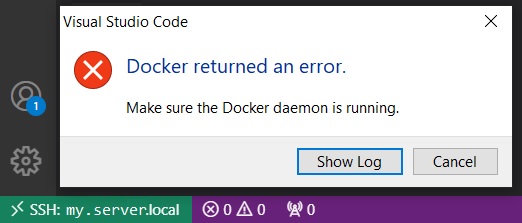
The best solution, in this case, is to enable SSH tunneling directly from the Docker container, allowing VS Code to connect seamlessly to the container as if it were a standalone remote machine:
Mounting a Docker container
Let’s use the Jupyter-enabled image we mentioned earlier as the base image for our container. After pulling it from Docker Hub:
docker pull davidelanz/jupyterwe can mount it exposing the container’s Jupyter port 8888 on, for example, my.server.local:2345 using the option --publish <SERVER-PORT>:<CONTAINER_PORT> (or -p), which publishes a container’s port (8888) to the specified server port (2345):
docker run\
    -p 2345:8888 \
    --name my-jupyter-workspace \
    davidelanz/jupyter
Now we can access Jupyter at my.server.local:2345, but can’t attach VSCode or connect via SSH to the my-jupyter-workspace container.
Mounting a Docker Container with SSH enabled
In order to enable the SSH tunnel, we first have to expose the container’s SSH port 22 to a server port. In our case, we will use my.server.local:2344:
docker run\
    -p 2344:22 \
    -p 2345:8888 \
    --name my-jupyter-workspace \
    davidelanz/jupyter
Now, we have to enter the container. First, we enter the server via SSH:
ssh my.server.localThen, we attach to the container with:
docker container exec -it my-jupyter-workspace /bin/bashNow we are finally inside our running container, and we can install an SSH server directly in it:
apt-get update && \
    apt-get upgrade -y && \
    apt-get -y install openssh-server && \
    mkdir -p /var/run/sshd && \
    service ssh start
If it has not already been set, we must change the root password to log in during the SSH authentication process:
echo "root:<NEW_PASSWORD>"|chpasswd
Now we are able to start the SSH server process via service ssh restart, but we still can’t log in. In fact, we have to authorize SSH connections with the root account. To do that, we need to go to /etc/ssh/sshd_config and modify the optionPermitRootLogin from prohibit-password to yes. Moreover, if it is not commented, comment the UsePam yes line. We can open the text file with GNU nano:
apt-get install nano && nano /etc/ssh/sshd_config| Before | After | |
|---|---|---|
# PermitRootLogin prohibit-password | → | PermitRootLogin yes |
UsePAM yes | → | #UsePAM yes |
Then we just need to restart the SSH process:
service ssh restartConnect via command line
Now we can connect from the command line to port 2344 on the Docker server, using the remote server’s address (my.address.local) and specifying the SSH port with -p <port>:
ssh -p 2344 my.address.localConnect via VSCode
We can now add my.address.local:2344 to the SSH configuration file:
Host my-remote-container
  HostName my.address.local
  User root
  Port 2344
  ForwardAgent yes
and we can use the VSCode Remote Explorertool to attach VSCode directly to the container running on the remote server.